
OR IS IT? For the last several years Microsoft has made it crystal clear that as of October 14, 2025 Windows 10 would no longer be supported. However, as of September 2025 somewhere around 571,760,000 Windows 10 users have resisted upgrading to Windows 11. And if you’re one of them, what should you do? Well, Microsoft now has 3 options for you to consider.
Option 1 – UPGRADE, by all means! That is, if you’re hardware is capable of supporting Windows 11, then you can upgrade for free. To do so, you can use one of the following methods:
Method 1: Using Windows Update
- Open Settings > Update & Security > Windows Update.
- Click Check for updates.
- If your device is ready, you will see a message saying “Upgrade to Windows 11 is ready”.
- Select Download and install.
Method 2: Using the Installation Assistant
- Go to the Microsoft download page for Windows 11.
- Select “Windows 11 Installation Assistant” and click Download now.
- Run the downloaded file and accept the license terms.
- Select “Accept and install” to begin the upgrade.
Option 2 – BUY TIME. Microsoft says “The last day of support for Windows 10 is October 14, 2025. If you need more time to move to Windows 11, we recommend you enroll your Windows 10 device in ESU. You can enroll in ESU any time until the program ends on October 13, 2026. And here’s how you do it:
How to get Windows 10 ESU
ESU is rolling out to eligible devices running Windows 10, version 22H2 prior to the end of support date on October 14, 2025, with availability expanding gradually as the phased rollout progresses.
To get ESU on your Windows 10 device:
- Go to Settings > Update & Security > Windows Update. If your device meets the prerequisites, you’ll see a link to enroll in ESU.
- Once you select Enroll now you’ll start the ESU enrollment. If you are signed into Windows with a local account, you will be prompted to sign into your Microsoft account. If you are already backing up your PC Settings, you will see a prompt to enroll your device.*
- If you aren’t backing up your Windows settings, you can choose if you want to begin backing up your settings, redeem Rewards, or make a one-time ($30) purchase to enroll in ESU.
You can use your existing ESU license on up to 10 devices once you enroll in ESU.
*Here’s a good YouTube video that talks about the process you can use to avoid having to pay the $30 ESU fee: https://www.youtube.com/watch?v=SZH7MlvOoPM
And Option 3 – Incompatible hardware? UPGRADE ANYWAY!
PCs are expensive! And with a little technical ability you can upgrade and be running Windows 11 on ‘unsupported hardware’ in no time. There are many YouTube videos that show you how, but perhaps this in the most straightforward one I’ve watched:
UPGRADE Your OLD PC Computer To WINDOWS 11 In 3 EASY Steps!
The video concludes with this warning (as they all should):
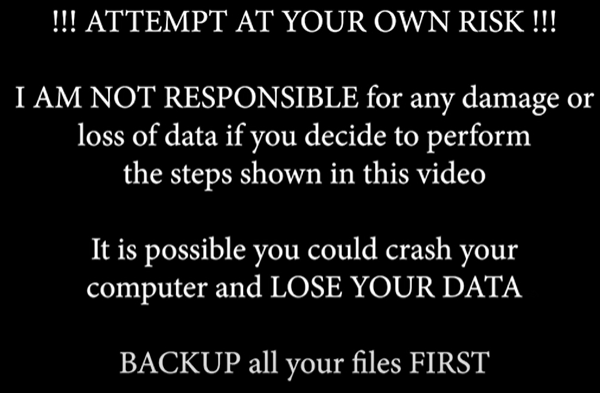
So yes, if you’re upgrade to Windows 11 on unsupported hardware, there is a real risk. I have done this 6 times without incident, but by having everything backed up BEFORE upgrading you minimize the pain of a failed upgrade. You have been warned.
PS – here’s another process for upgrading unsupported hardware that I have used successfully in the past: Windows 11 25H2 On Unsupported PCs Works Great!
