
Way back in December 2021 I wrote a post entitled “Want to Upgrade to Windows 11?” which covered a relatively complicated process for upgrading an ‘unsupported’ Windows 10 PC to Windows 11. By ‘unsupported’ I mean Windows PCs that don’t have the necessary hardware components Microsoft requires, which are many. And this can be a problem since MOST Windows PCs out there (630 million to be exact) won’t be supported by Microsoft after October 14, 2025 – yup, that’s just a few months away.
So, what to do. Well, the easy and expensive answer is to upgrade. That’s right, throw out the old PC and buy a new one. But if you don’t like that option and your PC or laptop is not all that old, here’s what I recommend: watch this YouTube video,
Install Windows 11 on ANY Windows 10 PC with NO data loss! by Ask Your Computer Guy
I just ran through the process exactly has he describes it (twice), and completed the successful upgrade of two relatively old (more than 5 years) PCs. I’ll be running through the process on an old Dell laptop shortly as well, because the process appears to be pretty bullet proof. I do recommend watching the video all the way through once, then play it on another computer while you execute the update. If you follow the steps exactly and have a bit of patience, your update will succeed and you will be running a fully up-to-date version of Windows 11 in no time. (Note: “no time” is actually 45 minutes to an hour depending on computer and network speeds)
There’s also a comment in the video to take note of where he says something like ‘Microsoft might, in the future, stop updating PCs that are running Windows 11 that don’t meet appropriate hardware requirements’. Then he says, ‘but by that time you’ll probably be considering upgrading your hardware anyway.’ So don’t treat this back-door upgrade as a forever solution to Microsoft’s plan to move everyone eventually to Windows 11. In fact, Microsoft did just that with my 2021 Windows 11 upgrade hack. They stopped supporting it. So I used the process being discussed here to upgrade it once again – successfully!
Two down, one to go. You can do this! Just follow the process laid out in the video TO THE LETTER and you’ll be fine. Upgrade away… Cheers!
** update **
I just completed my 3rd upgrade from Windows 10 to 11, this time on an older Dell Inspiron 15 laptop. This upgrade didn’t go as smootly as the others since Microsoft apparently doesn’t like people to download the .iso required for the upgrade more than a couple times from a given location (likely based on IP address). Here’s the error I received:
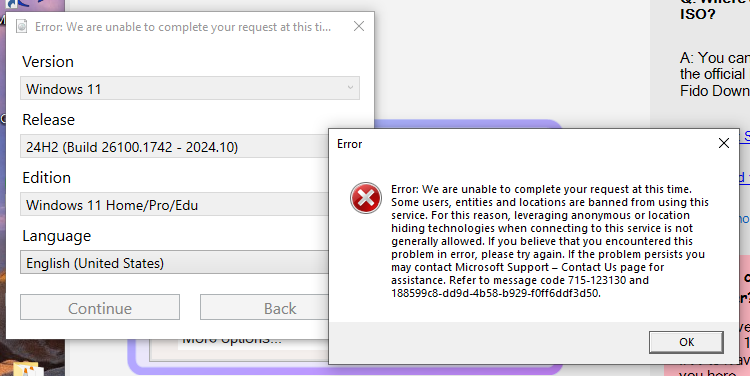
I waited 24 hours to try again and still no joy. So I downloaded and configured a free VPN (for this I used the Avira Phantom VPN – free version), told the VPN to set a new IP address for my machine, and voila, the .iso downloaded fine so I could continue the upgrade.
The upgrade to Windows 11 completed fine and I’m now installing more Windows updates, which I strongly recommend doing after your upgrade completes.
So there you have it. Number 3 upgrade complete! Yippee…
